Relocate Asset
View Current Location
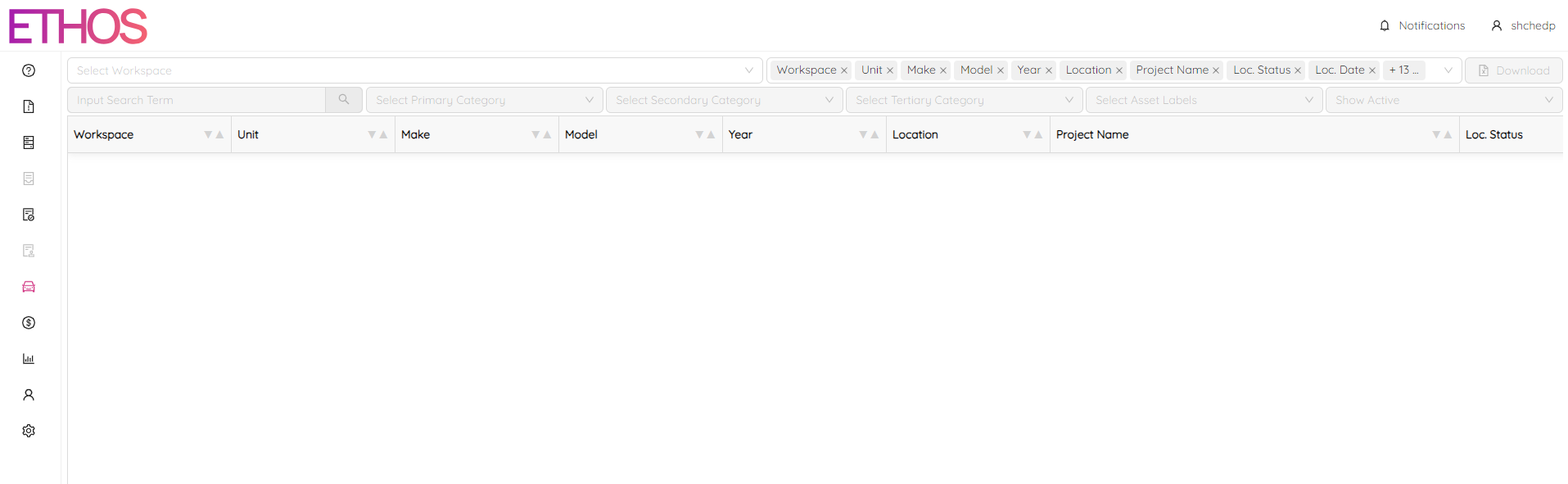
First click on the Assets module on the panel located on the left side of the ETHOS app and select Asset List.

This page will be blank until you choose a workspace.
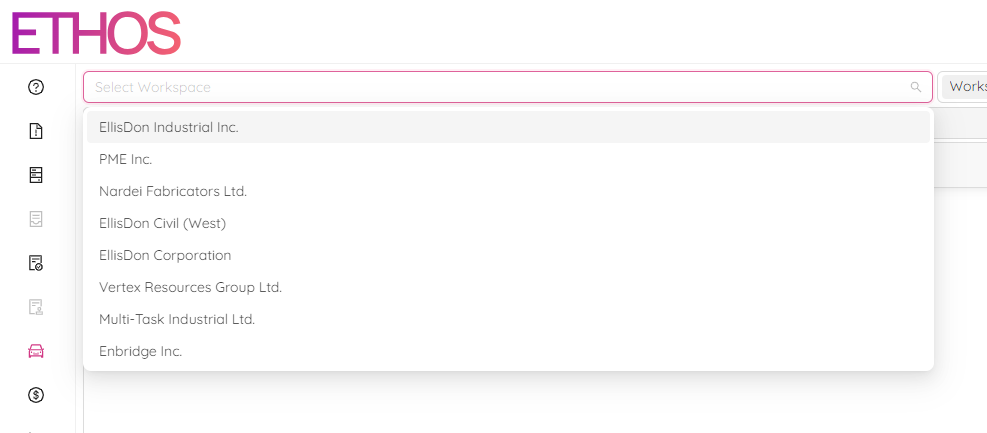
In the Select Workspace Dropdown Menu choose one of a few workspaces your asset is a part of.
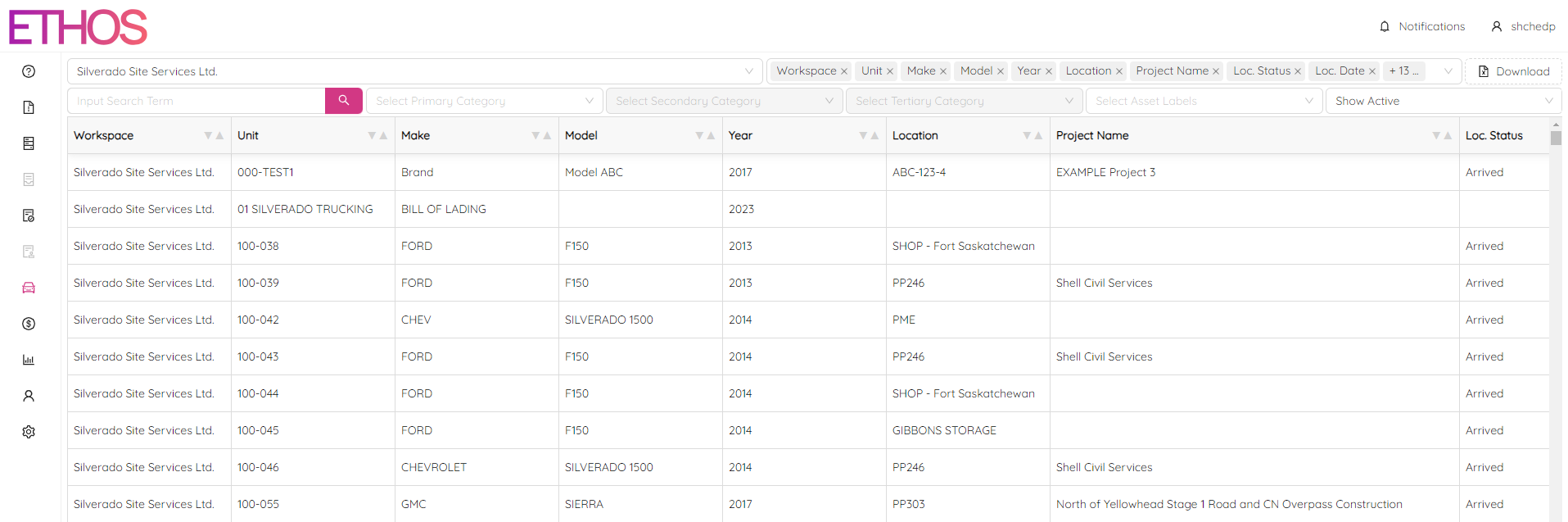
Once you choose your workspace the following page will populate and you will be able to click on the desired asset.
Details regarding the current location of the asset can be found in the Asset Location section as the top right of the Asset Single View page.
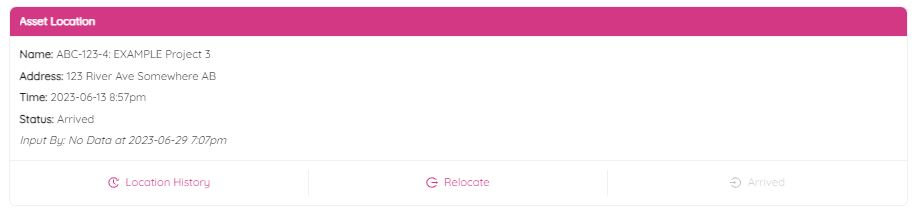
Relocate Asset
You can move assets to a new location by clicking the Relocate button and filling out the form that appears.
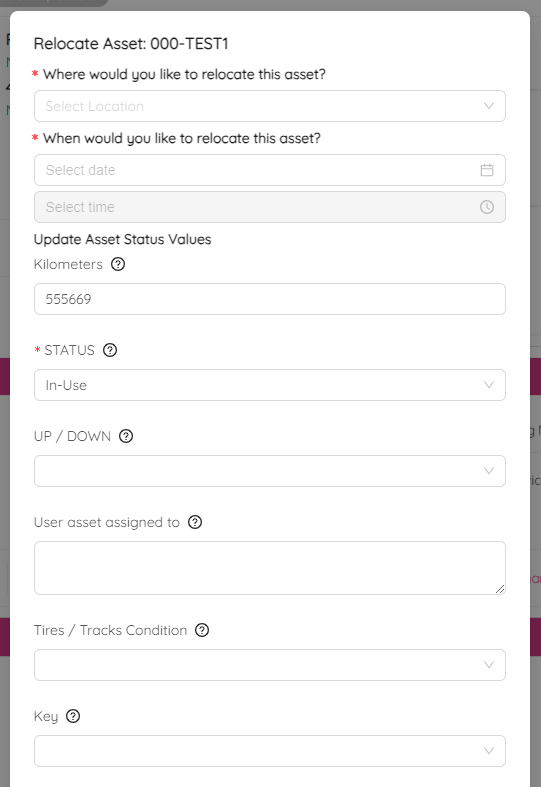
After confirming, the relocation status will be changed to Dispatched until Arrival is confirmed. Arrived button will be enable (turn to red) to update arrival information.
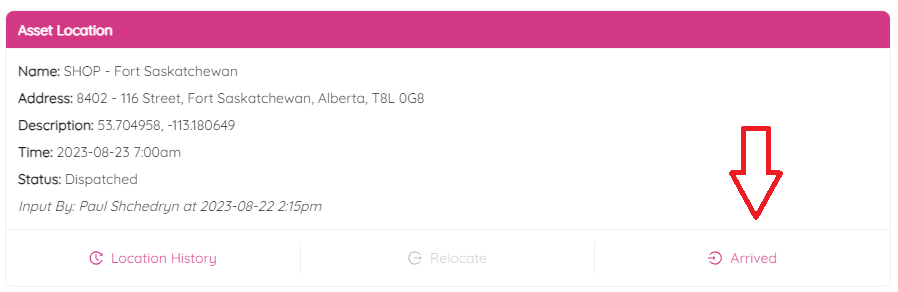
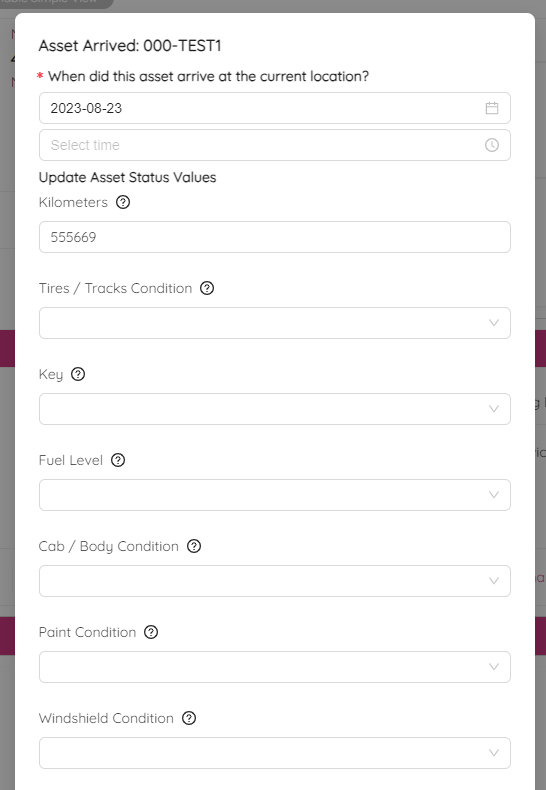
Once the asset arrives, click the Arrived button to update the arrival status. Specify the date, time, receiver name and other details. Upload documents and photos if necessary.
Asset Status will be changed to Arrived. Location History will be turned from red to green showing arrival status.
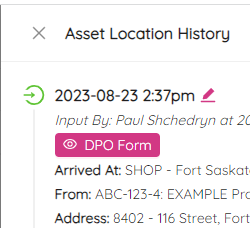
Location History
To see the location history click on the Location History button at the bottom of the Asset Location section.
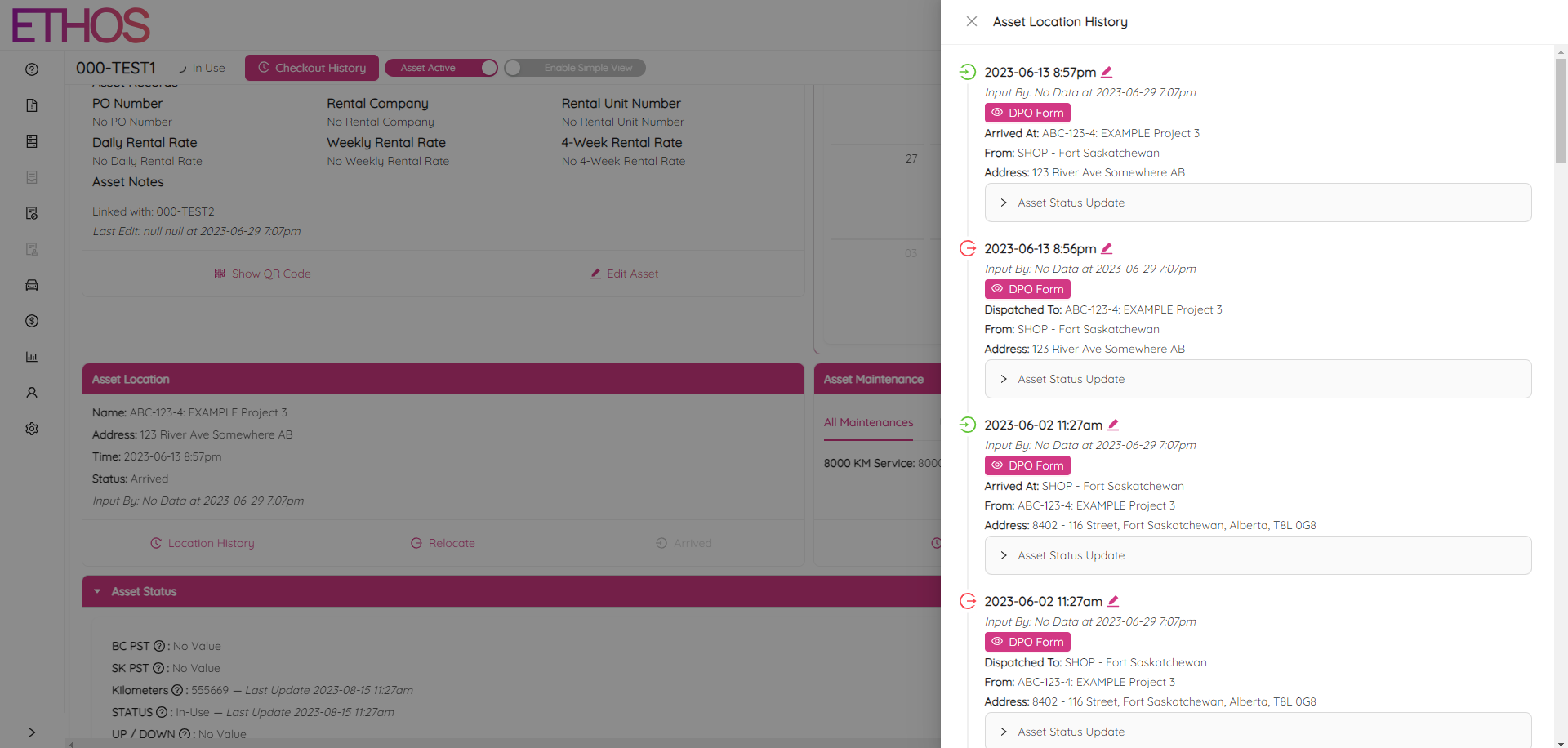
Delivery and Pickup Order
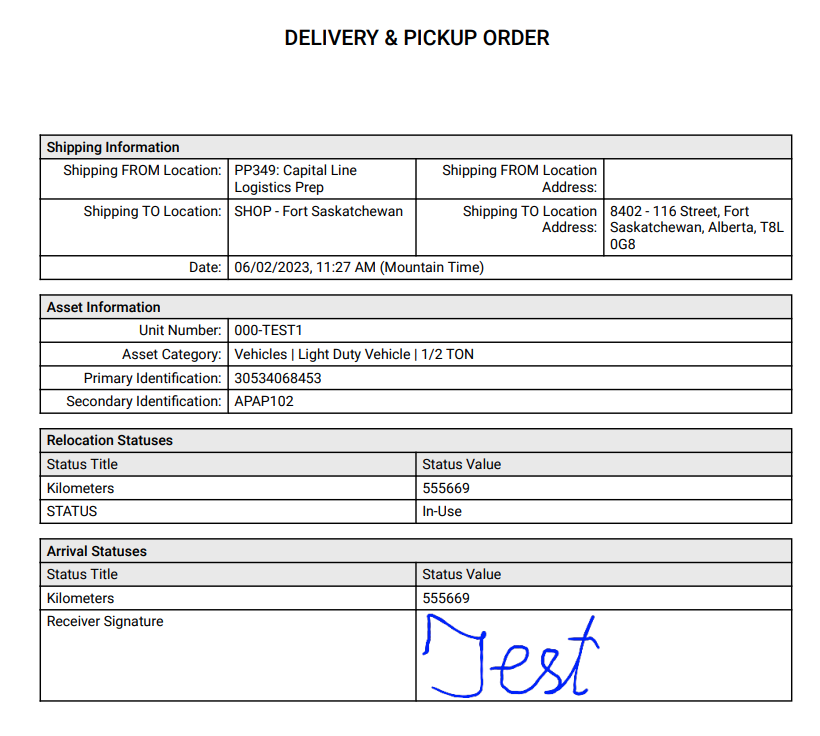
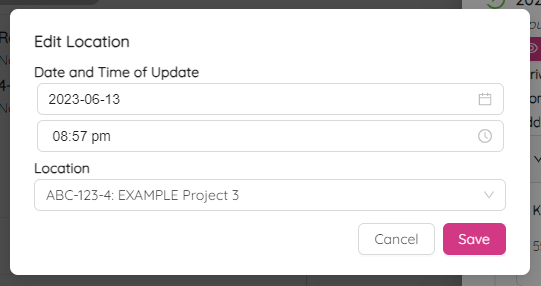
Here you can also download a "Delivery and Pickup Order" (DPO) and make changes in asset location history including Date and Time of update, location and other.
To edit any of the history records, click on the  button.
You can always delete the last undeleted relocation record from the location history. Simply click button, hit Delete and confirm.
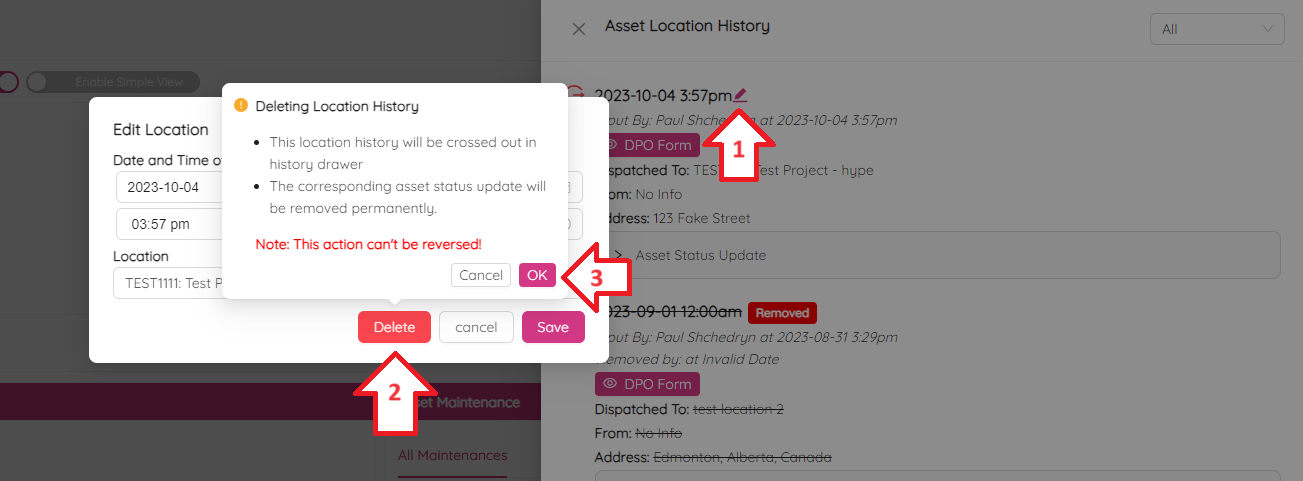
As a result, the deleted location record will become crossed-out and marked as Removed.
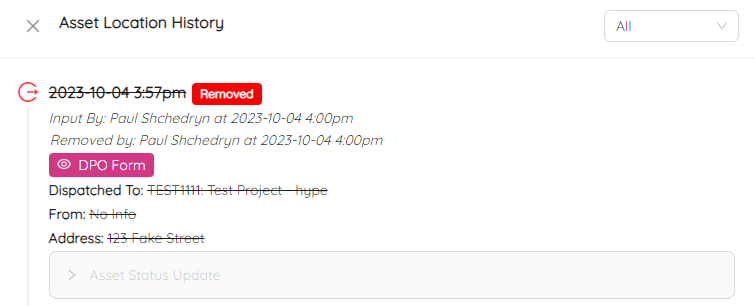
To download a DPO, click on the DPO Form button. You will see a form similar to the following.
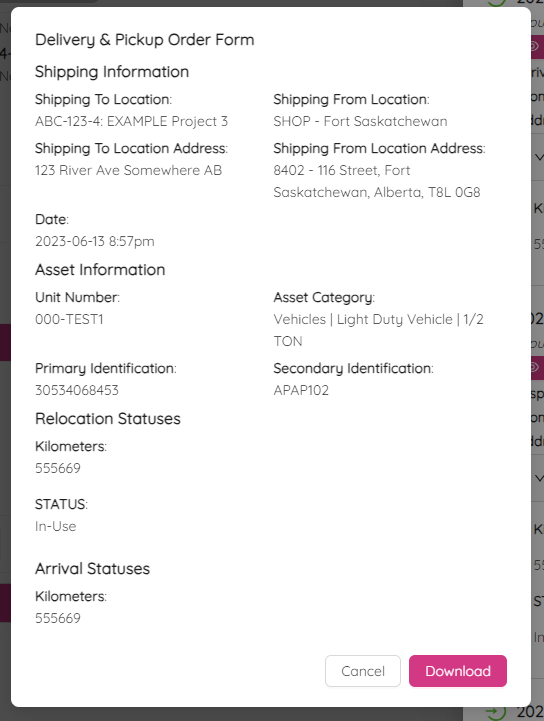
Click on the Download button and confirm by selecting Yes. As a result you will get a PDF file similar to the following.